Ready-to-use server
MySQL
Relational Database Management System
- Debian based
- Automatic security updates
- Free and open source
MySQL screenshots
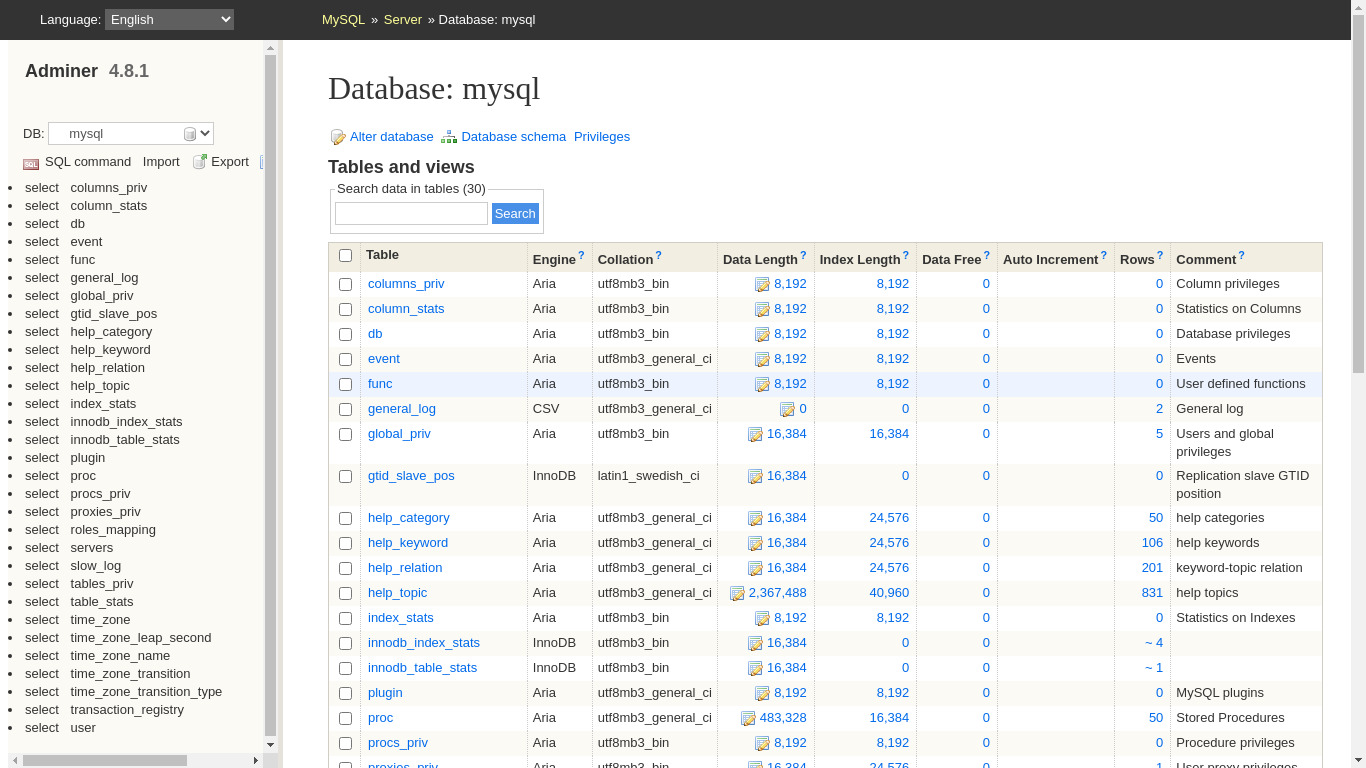
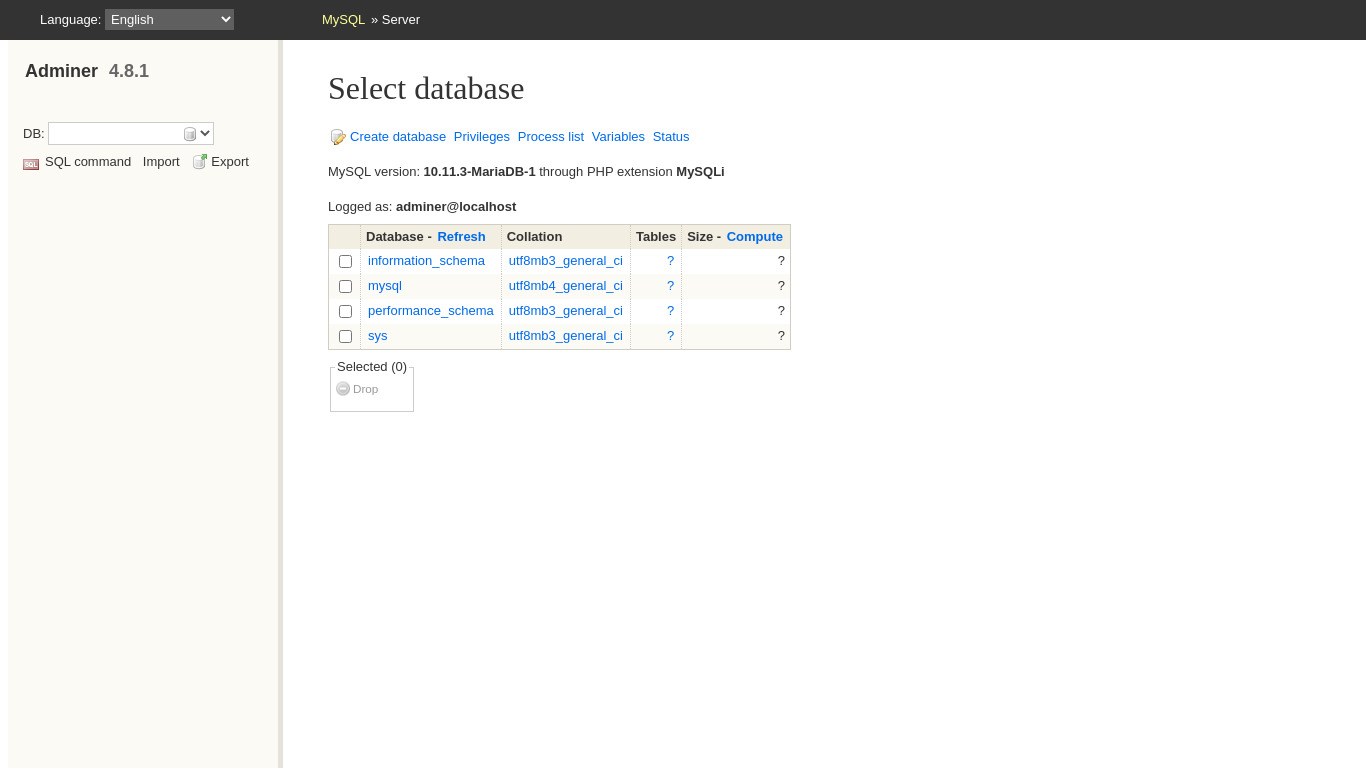
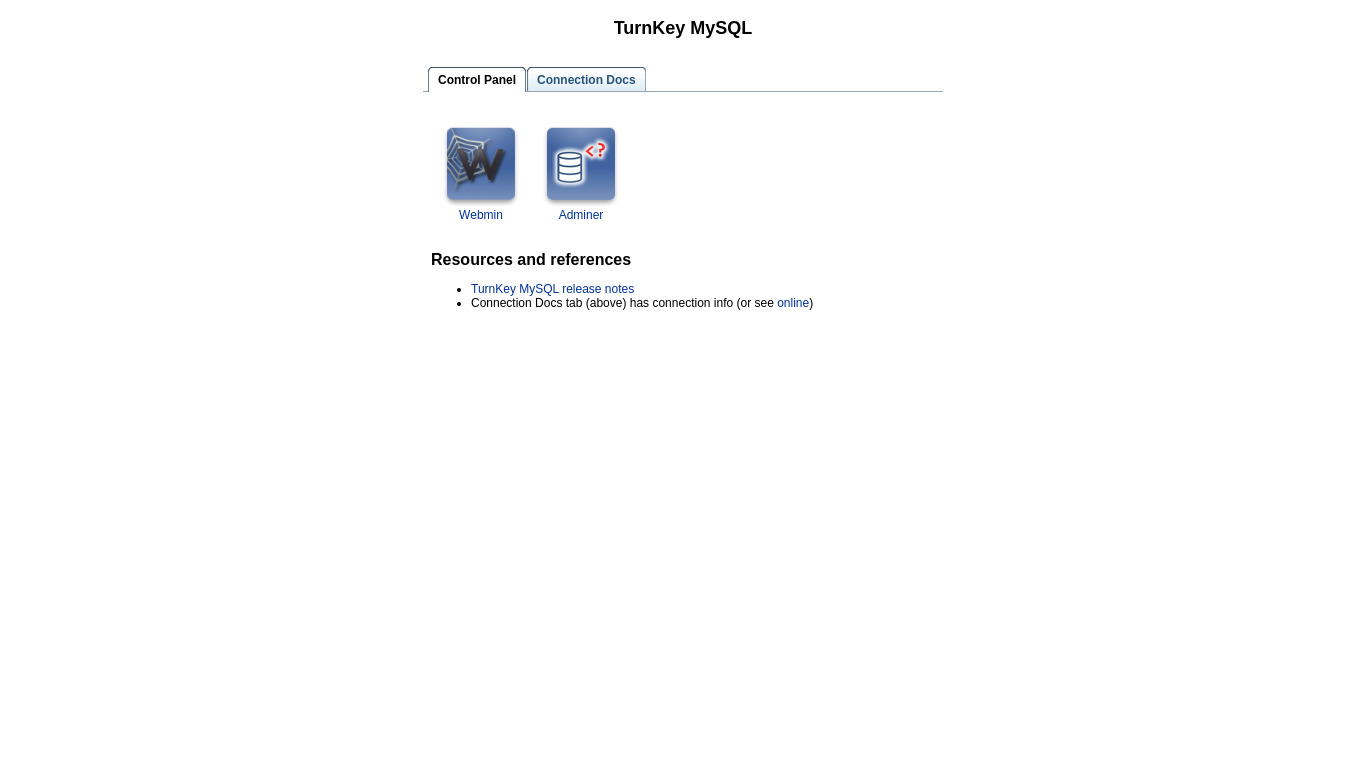
MySQL is a well known relational database management system (RDBMS). It is a fast, stable, robust, easy to use, and true multi-user, multi-threaded SQL database server.
Strictly speaking, this appliance actually provides MariaDB. MariaDB is generally considered a drop-in replacement for MySQL. However, it does have some features that don't directly map to MySQL and the code bases have drifted apart over time. As a general rule, it is possible to migrate from MySQL to MariaDB, but often not possible to go back again.
This appliance includes all the standard features in TurnKey Core, and on top of that:
MariaDB (MySQL replacement).
Socket authentication for local 'root' MariaDB user. Secure and convenient. Access only from 'root' Linux user but no password required.
Web Control Panel, including "quick start" docs, noting info about SSL MySQL connections.
Adminer administration frontend for MySQL (listening on port 12322 - uses SSL).
MySQL webmin module (compatible with MariaDB).
MySQLTuner - MariaDB tuning and review script. Provides insight and advice to optimize to your resources and use case.
Dedicated remote MySQL/MariaDB user; 'remote'.
MariaDB configured to listen on port 3306 TCP on all interfaces. SSL enabled (and required) by default. NOTE: In a production environment it is recommended to limit incoming connections to specific hosts:
UPDATE `mysql`.`user` SET `Host` = 'hostname'
WHERE CONVERT( `user`.`Host` USING utf8 ) = '%' AND
CONVERT( `user`.`User` USING utf8 ) = 'remote' LIMIT 1 ;
Credentials (passwords set at first boot)
Webmin, SSH, MySQL (terminal only): username root
Adminer: username adminer
MySQL (remote): username remote
Run from browser
V 19.0
V 18.1
GitHub
Usage details & Logging in for Administration
No default passwords: For security reasons there are no default passwords. All passwords are set at system initialization time.
Ignore SSL browser warning: browsers don't like self-signed SSL certificates, but this is the only kind that can be generated automatically. If you have a domain configured, then via Confconsole Advanced menu, you can generate free Let's Encypt SSL/TLS certificates.
Web - point your browser at either:
- http://12.34.56.789/ - not encrypted so no browser warning
- https://12.34.56.789/ - encrypted with self-signed SSL certificate
Note: some appliances auto direct http to https.
Username for database administration:
- Adminer; login as MySQL username adminer:
https://12.34.56.789:12322/ - Adminer database management web app
- MySQL command line tool; log in as root (no password required):
$ mysql --user root
Welcome to the MySQL monitor.  Commands end with ; or \g.
Type 'help;' or '\h' for help. Type '\c' to clear the current input statement.

mariadb>
- Remote connection via port 3306; log in as username remote. Use the certificates/keys found in /etc/mariadb/certificates - as noted in the docs and/or the "quick start" notes from the landing page.
Username for OS system administration:
Login as root except on AWS marketplace which uses username admin.
- Point your browser to:
- https://12.34.56.789:12321/ - System control panel
- https://12.34.56.789:12320/ - Web based command line terminal
- Login with SSH client:
ssh root@12.34.56.789
Special case for AWS marketplace:
ssh admin@12.34.56.789
* Replace 12.34.56.789 with a valid IP or hostname.
Documentation
Accessing Database remotely
Only the MySQL appliance allows remote connections to the DB by default. However any appliance with MySQL can be configured to allow remote connections. Please see here.
InnoDB
InnoDB is enabled by default.
# mysql -uroot
> show engines;
 MyISAM     | DEFAULT
 InnoDB     | YES
 ...
But some people have experienced problems using InnoDB with MySQL in both the legacy and current stable (v11.1) TKL appliances. MySQL seems to disable it automatically if your InnoDB log files get corrupted. When you remove them, they are recreated, allowing InnoDB to start again. To rename log files and restart MySQL:
/etc/init.d/mysql stop
mv /var/lib/mysql/ib_logfile0 /var/lib/mysql/ib_logfile0.bak
mv /var/lib/mysql/ib_logfile1 /var/lib/mysql/ib_logfile1.bak
/etc/init.d/mysql start
But if you want it to be your default storage engine you have to specify it, for example:
# cat /etc/mysql/conf.d/storage_engine.cnf
[mysqld]
default-storage-engine = InnoDB

# /etc/init.d/mysql restart

# mysql -uroot
> show engines;
 MyISAM     | ENABLED
 InnoDB     | DEFAULT
 ...