
Ready-to-use server
ownCloud
Share files, music, calendar
- Debian based
- Automatic security updates
- Free and open source
ownCloud screenshots
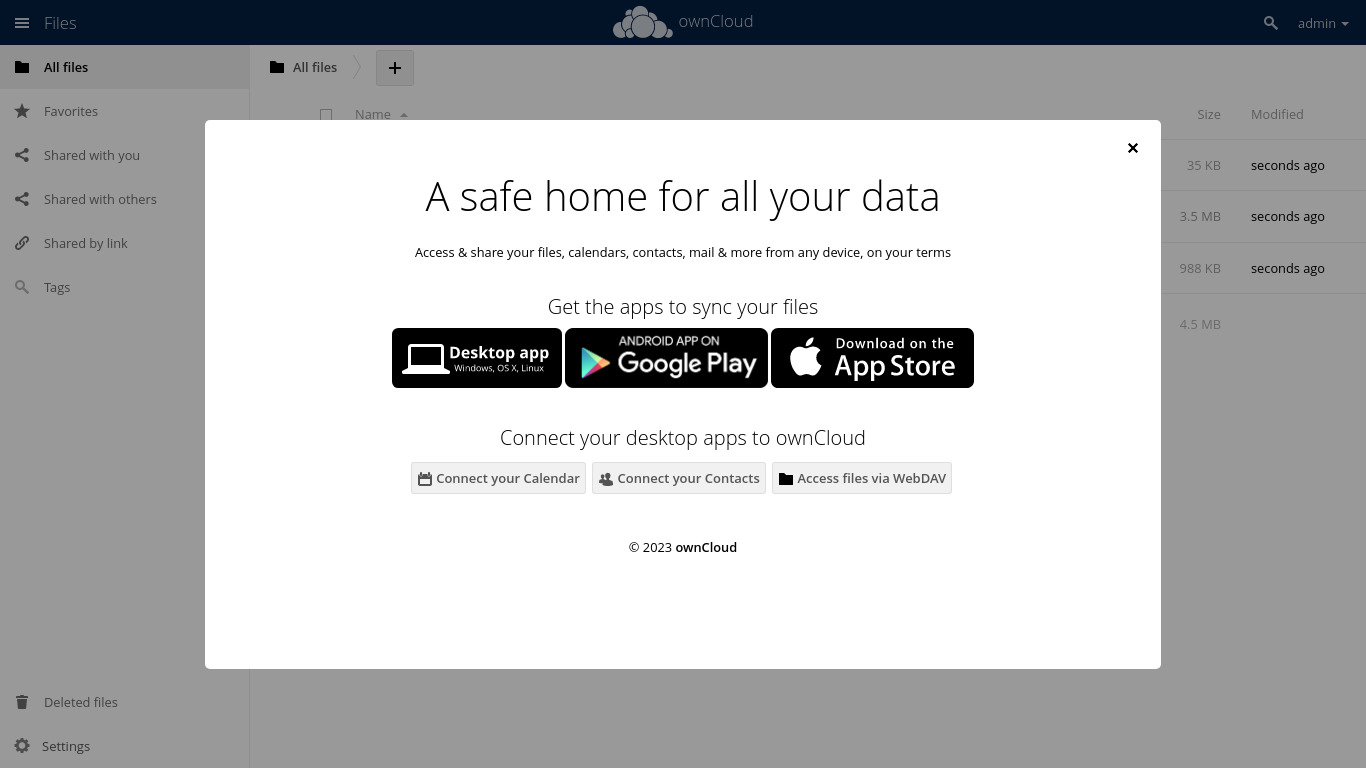
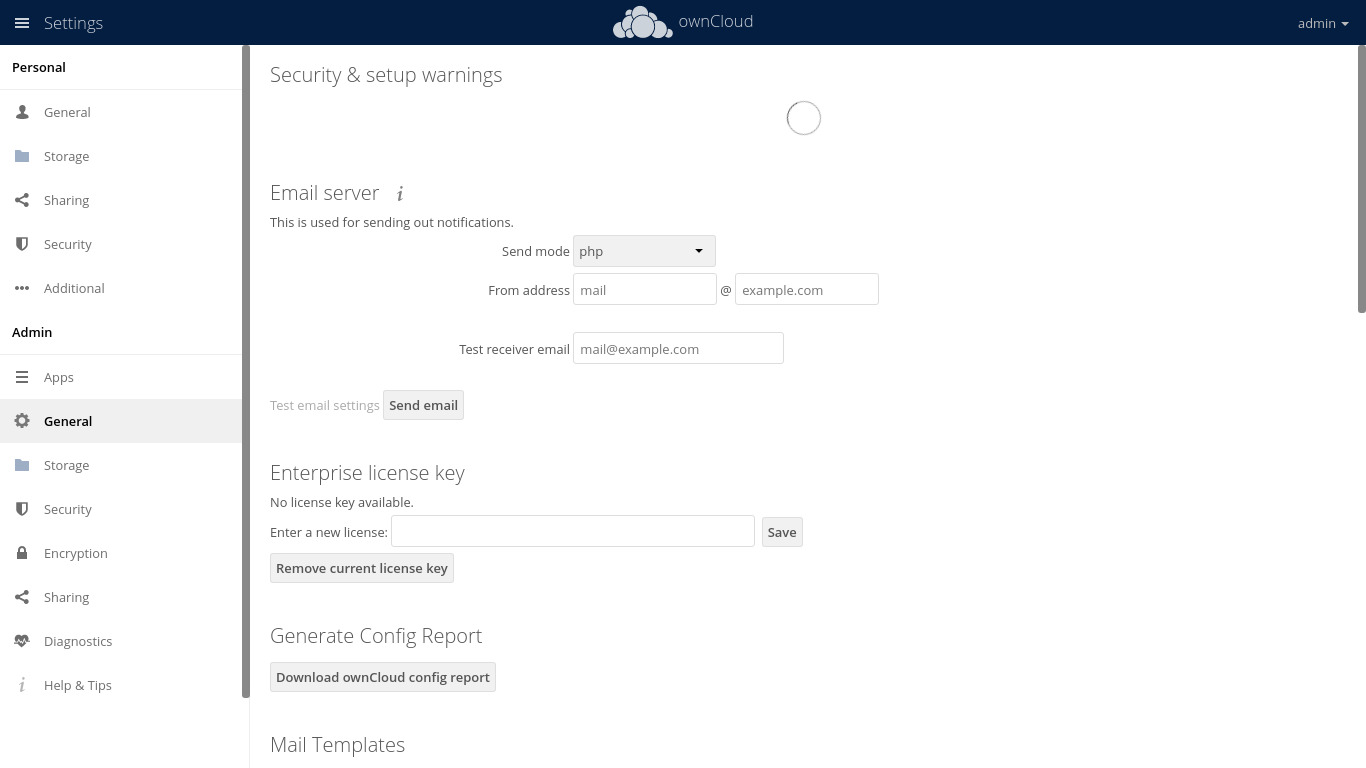
ownCloud helps store your files, folders, contacts, photo galleries, calendars and more on a server of your choosing. Access that folder from your mobile device, your desktop, or a web browser. Access your data wherever you are, when you need it.
This appliance includes all the standard features in TurnKey Core, and on top of that:
ownCloud Server 11:
Runs from the official ownCloud container image, pinned to a verified amd64 manifest digest.
Stores persistent configuration and user files under /var/lib/owncloud.
Uses Debian MariaDB and Redis services on a dedicated local Docker network.
Includes occ script for command line administration and configuration. Also includes turnkey-occ wrapper script (runs occ as www-data user).
Security note: ownCloud updates require supervision and are not installed automatically. Use owncloud-update --check VERSION to inspect the official amd64 image digest, then run owncloud-update VERSION DIGEST after reviewing the release and backing up the appliance. See ownCloud documentation for upgrading.
SSL support out of the box.
Adminer administration frontend for MySQL (listening on port 12322 - uses SSL).
Postfix MTA (bound to localhost) to allow sending of email (e.g., password recovery).
Webmin modules for configuring Apache2, PHP, MySQL and Postfix.
Credentials (passwords set at first boot)
Webmin, SSH, MySQL: username root
Adminer: username adminer
ownCloud: username admin
Run from browser
V 18.0
GitHub
Usage details & Logging in for Administration
No default passwords: For security reasons there are no default passwords. All passwords are set at system initialization time.
Ignore SSL browser warning: browsers don't like self-signed SSL certificates, but this is the only kind that can be generated automatically. If you have a domain configured, then via Confconsole Advanced menu, you can generate free Let's Encypt SSL/TLS certificates.
Web - point your browser at either:
- http://12.34.56.789/ - not encrypted so no browser warning
- https://12.34.56.789/ - encrypted with self-signed SSL certificate
Note: some appliances auto direct http to https.
Username for adminer:
Login as username adminer
Username for owncloud:
Login as username admin
Username for database administration:
- Adminer; login as MySQL username adminer:
https://12.34.56.789:12322/ - Adminer database management web app
- MySQL command line tool; log in as root (no password required):
$ mysql --user root
Welcome to the MySQL monitor.  Commands end with ; or \g.
Type 'help;' or '\h' for help. Type '\c' to clear the current input statement.

mysql>
Username for OS system administration:
Login as root except on AWS marketplace which uses username admin.
- Point your browser to:
- https://12.34.56.789:12321/ - System control panel
- https://12.34.56.789:12320/ - Web based command line terminal
- Login with SSH client:
ssh root@12.34.56.789
Special case for AWS marketplace:
ssh admin@12.34.56.789
* Replace 12.34.56.789 with a valid IP or hostname.
Documentation
The TurnKey v14.0 & v14.1 ownCloud appliances use the Debian package, rather than installing from upstream. For these versions, that means ownCloud v7.0.4.
The v14.2 ownCloud appliance shipped with ownCloud v10.0.2 installed directly from ownCloud themselves using the downloaded tarball.
If you would like to migrate from the official Debian package to the upstream Debian package, then there is a (quite dated and untested) doc for that. If you do attempt to follow that doc, please give feedback on how you went. We would especially welcome reports of success/failure and any other additional info, etc! Even though that is no longer this is no longer the recommended method, it should still work ok.
The recommended install method is now downloading the upstream ownCloud tarball directly. However, there is not currently a documented way to do that, so will likely be a case of trial and error. Unfortunately, ownCloud do not appear to provide instructions for updating from v7.x (or even v8.x) to currently supported versions, however, they do provide older versions as well as upgrade instructions here and here.
If you hit issues and would like a hand, please post in our forums and we'll do our best to help out.
UNTESTED: Update ownCloud to v8.x upstream
It is no longer recommended that you install ownCloud from their Debian repo. You are best to install direct from ownCloud via their downloaded tarball.
These instructions cover a previous install method, namely the ownCloud upstream Debian repo. If you attempt this, then please post feedback.
[update] I recently found this thread which discusses the upgrade from the Debian package to the upstream version. I found this post particularly enlightening...
Please note that these instructions are UNTESTED!
Use at your own risk!
Caveats:
Unless you need a newer version of ownCloud (TKL v14.0/v14.1 comes with v7.0) it is highly recommended that you leave your ownCloud server as is. The main reason is that the v14.x TurnKey ownCloud appliance is packaged with ownCloud from the official Debian repositories. That means that your server will automatically receive security updates.
So if you change to upstream then:
- you will no longer receive auto security updates to ownCloud (you will still get other OS security updates)
- as per above you'll need to manually check for and install ownCloud updates
- upstream do not provide security patches so you will need to update to whatever the latest version is
- new upstream packages may not provide a nice upgrade path from your current version to the newest version (as has happened in the past)
- TKLBAM will no longer work properly OOTB (it will still save your data but restore/migration to a new machine will not work without manual intervention. (This can be resolved using hooks if you so desire). Before you start make sure that you have backed up your data. Ideally, test your backup too! No use having a backup if it doesn't work!
Here we go...
These instructions are for upgrading v7.0 to 8.1 (current upstream stable at the time of writing):
Temporarily add the old v8.0 upstream repo (we'll add the new repo at the same time but leave it disabled):
REPO="http://download.opensuse.org/repositories/isv:ownCloud:community"
echo "deb $REPO:/8.0/Debian_8.0/ /" >> /etc/apt/sources.list.d/owncloud-8.0.list
REPO="http://download.opensuse.org/repositories/isv:ownCloud:community/Debian_8.0"
echo "deb $REPO/Debian_8.0/ /" >> /etc/apt/sources.list.d/owncloud.list.disabled
wget -q -O- $REPO/Debian_8.0/Release.key | apt-key add -
apt-get update
apt-get install owncloud
Now you'll need to remove a few left over packages:
apt-get remove owncloud-apps owncloud-client-l10n owncloud-doc libowncloudsync0 owncloud-client-doc owncloud-client-cmd owncloud-client
Adjust the config (for Apache and ownCloud) and move your data:
sed -i "s|/usr/share|/var/www|" /etc/apache2/sites-available/owncloud.conf
ln -s /etc/owncloud/config.php /var/www/owncloud/config/config.php
sed -i "s|/usr/share|/var/www|" /etc/owncloud/config.php
mv /var/lib/owncloud/data/* /var/www/owncloud/data/
service apache2 restart
Then open your site in the web browser and follow the prompts to update your database.
Then disable the temp v8.0 repo and enable the current repo:
mv /etc/apt/sources.list.d/owncloud-8.0.list /etc/apt/sources.list.d/owncloud-8.0.list.disabled
mv /etc/apt/sources.list.d/owncloud.list.disabled /etc/apt/sources.list.d/owncloud.list
Open your web browser again and do the upgrade. Hopefully that should work...