
Ready-to-use server
WordPress
Blog Publishing Platform
- Debian based
- Automatic security updates
- Free and open source
WordPress screenshots


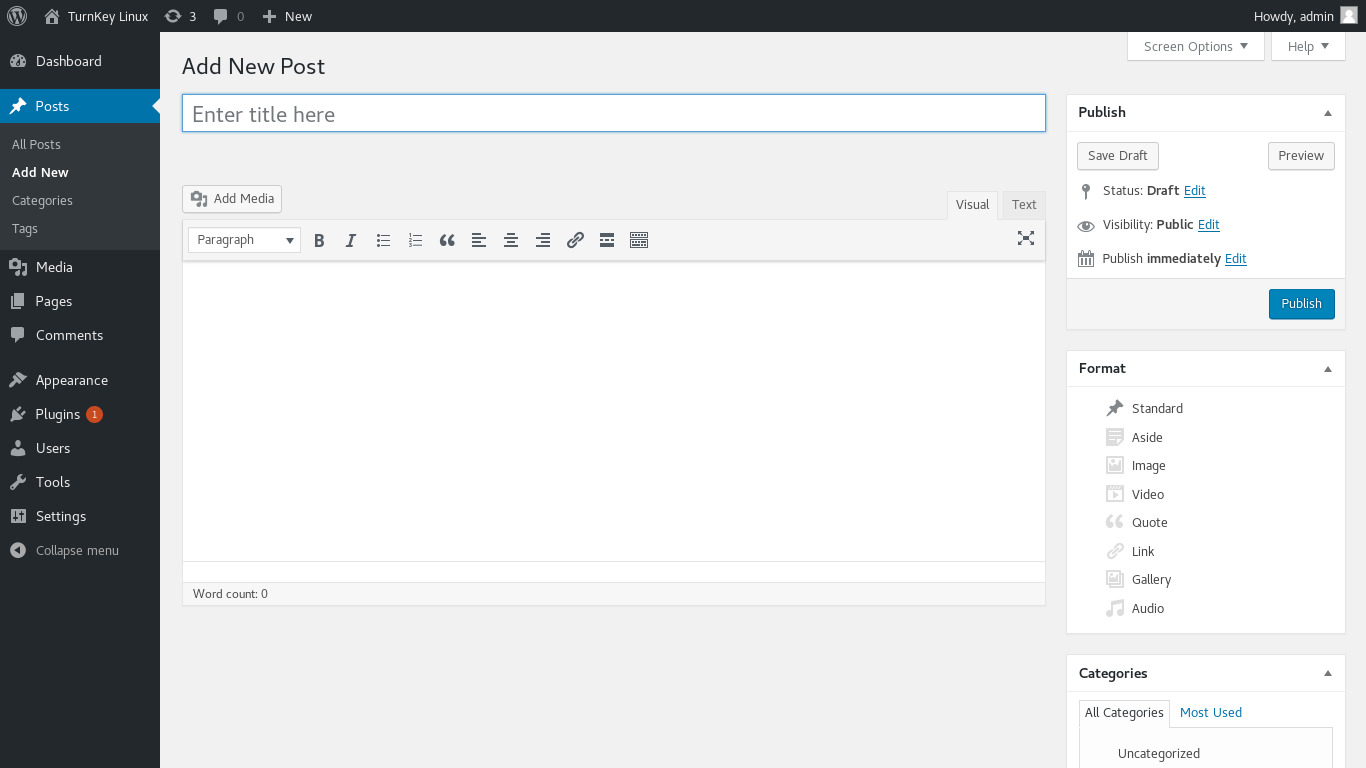
WordPress is a state-of-the-art publishing platform with a focus on aesthetics, web standards, and usability. It is one of the worlds most popular blog publishing applications, includes tons of powerful core functionality, extendable via literally thousands of plugins, and supports full theming.
This appliance includes all the standard features in TurnKey Core, and on top of that:
WordPress configurations:
Installed from upstream source code to /var/www/wordpress
Integrated upgrade mechanism: get WordPress updates straight from WordPress' creator Automattic.
Uploading of media such as images, videos, etc.
Permalinks configuration supported through admin console (convenience)
Plugin and theme management remains available through WordPress. These directories intentionally contain web-writable executable code; install only updates and extensions you trust.
WordPress core is root-owned and does not update automatically. Apply a supervised core update as root with turnkey-wordpress-update. The command verifies official WordPress core checksums and restores the appliance ownership boundary after updating.
Landing page provides links to WordPress plugin search, plus a number of useful and popular Wordpress plugins (none pre-installed):
Yost SEO: Optimizes your WordPress blog for search engines and XML sitemaps.
NextGEN Gallery: Easy to use image gallery with thumbnail & slideshow options.
JetPack by WordPress.com: Jetpack adds powerful features previously only available to WordPress.com users including customization, traffic, mobile, content, and performance tools.
WP Super Cache: Accelerates your blog by serving 99% of your visitors via static HTML files.
Social Media Share Buttons & Icons: Promote your content by adding links to social sharing and bookmarking sites.
Simple Tags: automatically adds tags and related posts to your content.
BackupWordPress: easily backup your core WordPress tables.
Google Analytics Dashboard for WordPress: track visitors, AdSense clicks, outgoing links, and search queries.
WP-Polls: Adds an easily customizable AJAX poll system to your blog.
WP-PageNavi: Adds more advanced paging navigation.
Ozh admin dropdown menu: Creates a drop down menu with all admin links.
Contact Form 7: Customizable contact forms supporting AJAX, CAPTCHA and Akismet integration.
Seriously Simple Podcasting: Simple Podcasting from your WordPress site.
SSL support out of the box.
Adminer administration frontend for MySQL (listening on port 12322 - uses SSL).
Postfix MTA (bound to localhost) to allow sending of email (e.g., password recovery).
Webmin modules for configuring Apache2, PHP, MySQL (MariaDB) and Postfix.
See the WordPress docs for further details (including multisite howto).
Credentials (passwords set at first boot)
Webmin, SSH, MySQL: username root
Adminer: username adminer
Wordpress: username admin
Run from browser
V 19.0
V 18.2
GitHub
Usage details & Logging in for Administration
No default passwords: For security reasons there are no default passwords. All passwords are set at system initialization time.
Ignore SSL browser warning: browsers don't like self-signed SSL certificates, but this is the only kind that can be generated automatically. If you have a domain configured, then via Confconsole Advanced menu, you can generate free Let's Encypt SSL/TLS certificates.
Web - point your browser at either:
- http://12.34.56.789/ - not encrypted so no browser warning
- https://12.34.56.789/ - encrypted with self-signed SSL certificate
Note: some appliances auto direct http to https.
Username for adminer:
Login as username adminer
Username for wordpress:
Login as username admin
Username for database administration:
- Adminer; login as MySQL username adminer:
https://12.34.56.789:12322/ - Adminer database management web app
- MySQL command line tool; log in as root (no password required):
$ mysql --user root
Welcome to the MySQL monitor.  Commands end with ; or \g.
Type 'help;' or '\h' for help. Type '\c' to clear the current input statement.

mysql>
Username for OS system administration:
Login as root except on AWS marketplace which uses username admin.
- Point your browser to:
- https://12.34.56.789:12321/ - System control panel
- https://12.34.56.789:12320/ - Web based command line terminal
- Login with SSH client:
ssh root@12.34.56.789
Special case for AWS marketplace:
ssh admin@12.34.56.789
* Replace 12.34.56.789 with a valid IP or hostname.
Documentation
WordPress multisite support (aka. Network Sites)
A multisite network is a collection of sites that all share the same WordPress installation. They can also share plugins and themes. The individual sites in the network are virtual sites in the sense that they do not have their own directories on your server, although they do have separate directories for media uploads within the shared installation, and they do have separate tables in the database.
The following steps are required in order to enabled multisite support in TurnKey WordPress:
1. Decide whether you want to use sub-domains or sub-directories
Wordpress multisites can either be served from a sub-domain or a sub-directory, for example:
- Sub-domains: site1.example.com, site2.example.com
- Sub-directories: www.example.com/site1, www.example.com/site2
Important: If you decide sub-domains, then SITE would be http://example.com . If you decide sub-directories, then SITE would be http://www.example.com .
Note: Sub-domains require you to be able to update your domains DNS records (see TurnKey Domain management).
2. Update the wordpress configuration
Edit /var/www/wordpress/wp-config.php
Delete the following:

define('WP_SITEURL', 'http://'.\$_SERVER['HTTP_HOST']);
define('WP_HOME', 'http://'.\$_SERVER['HTTP_HOST']);

And in its place, add (replace SITE with what you decided in step 1):

define('WP_SITEURL', 'SITE');
define('WP_HOME', 'SITE');
define('WP_ALLOW_MULTISITE', true);
Update the database
mysql --defaults-extra-file=/etc/mysql/debian.cnf <<EOF
USE wordpress;
UPDATE wp_options SET option_value='SITE' WHERE option_name='home';
UPDATE wp_options SET option_value='SITE' WHERE option_name='siteurl';
EOF