

Ready-to-use server
Ansible®
Radically simple IT automation platform
- Automatic security updatesDebian support through June 2030
- You're in controlRun on your hardware or in the cloud.
- Free and open sourceUse, inspect and customize the code.
Ansible® screenshots
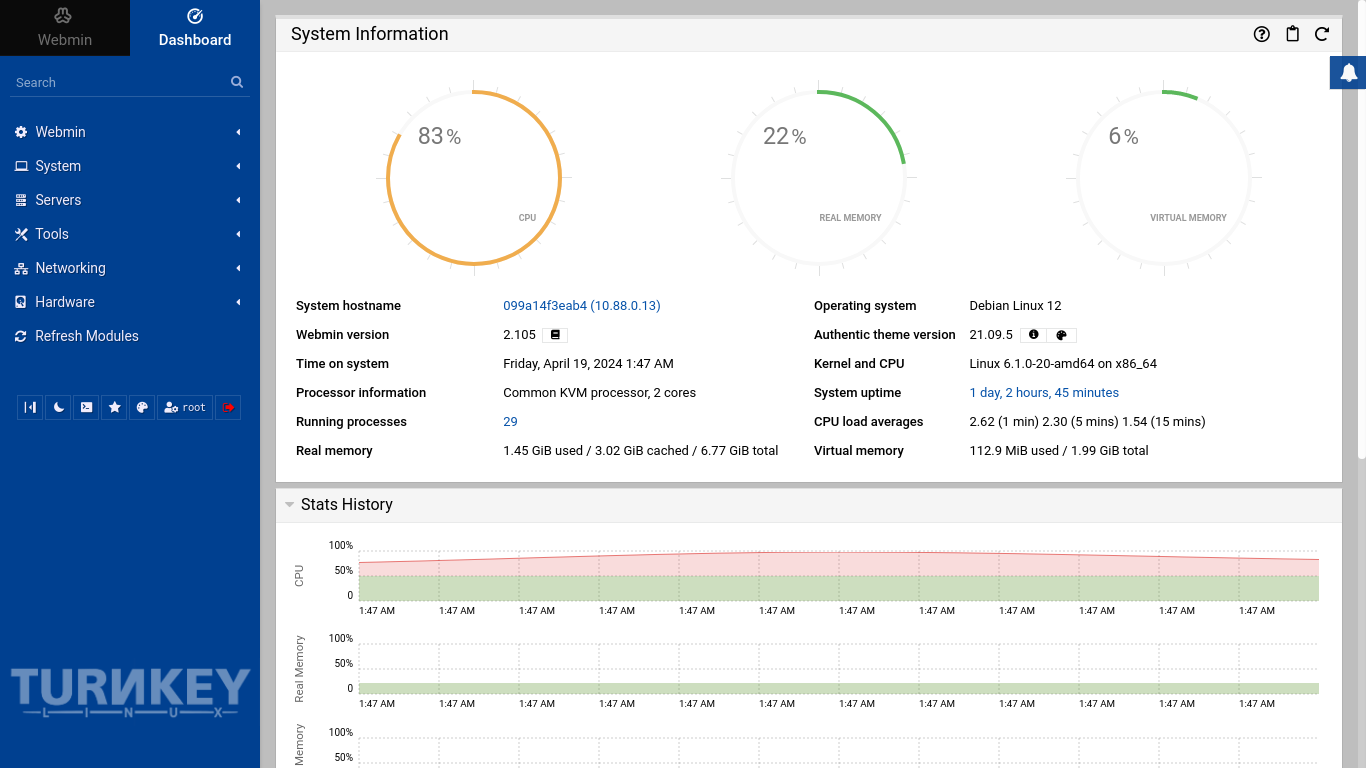
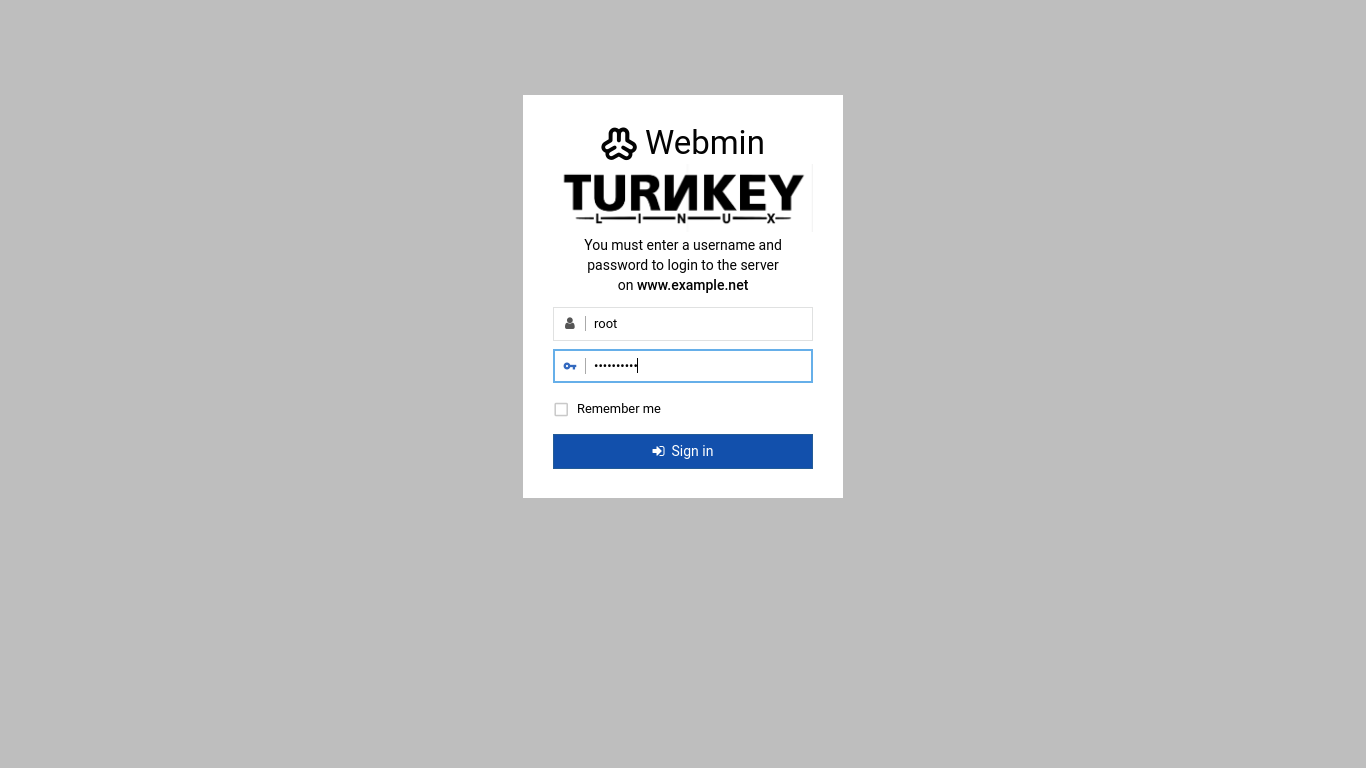
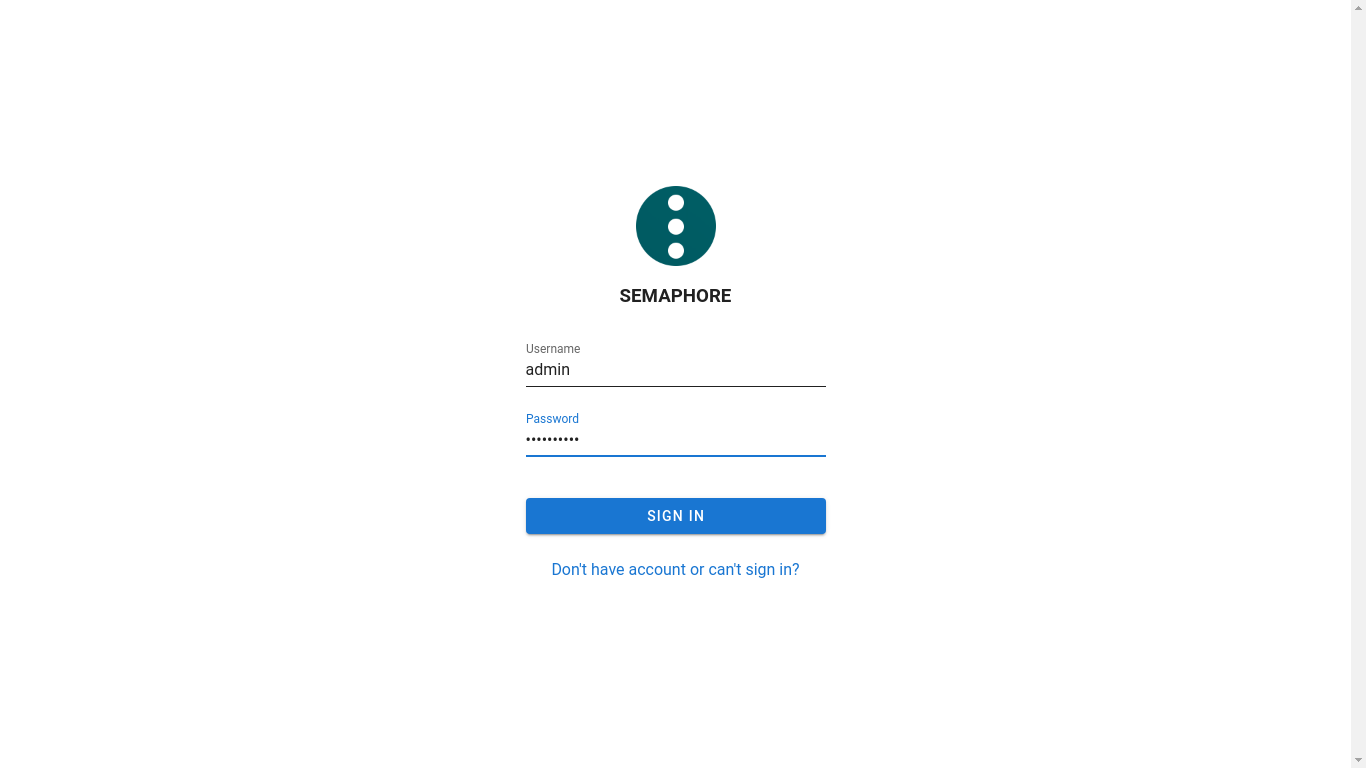
Ansible is a simple, agentless IT automation engine that automates cloud provisioning, configuration management, application deployment and intra-service orchestration. It can configure systems, deploy software, and streamline advanced IT tasks such as continuous deployments or zero downtime rolling updates.
This server includes all the standard features in TurnKey Core, and on top of that:
Stable release of Ansible installed from Debian repos.
WinRM support for managing Windows hosts.
Sudo support for the ansible user.
Semaphore open source web UI for Ansible.
SSL support out of the box.
Webmin modules for managing and configuring server.
Usage
For examples of how to use the Ansible server, see Usage.
Resources
Configuration management with Ansible (old but still useful overview and "getting started" info).
Ansible Galaxy Community provided "playbooks".
Ansible® is a registered trademark of Ansible, Inc. in the United States and other countries.
Note: This software server is not supported by Ansible or Red Hat
Credentials (passwords set at first boot)
Webmin, SSH: username root
Ansible: username ansible
Run from browser
V 19.0
V 18.0
GitHub
Usage details & Logging in for Administration
No default passwords: For security reasons there are no default passwords. All passwords are set at system initialization time.
Ignore SSL browser warning: browsers don't like self-signed SSL certificates, but this is the only kind that can be generated automatically without paying a commercial Certificate Authority.
Web Semaphore Ansible UI - point your browser at:
- https://12.34.56.789/ - encrypted with self-signed SSL certificate
Username for Semaphore:
Login as username admin - password is initially same as 'ansible' Linux user set at firstboot.
Username for ansible:
Login as username ansible
Username for OS system administration:
Login as root except on AWS marketplace which uses username admin.
- Point your browser to:
- https://12.34.56.789:12321/ - System control panel
- https://12.34.56.789:12320/ - Web based command line terminal
- Login with SSH client:
ssh root@12.34.56.789
Special case for AWS marketplace:
ssh admin@12.34.56.789
* Replace 12.34.56.789 with a valid IP or hostname.