

Ready-to-use server
Etherpad
Real-time document collaboration
- Automatic security updatesDebian support through June 2030
- You're in controlRun on your hardware or in the cloud.
- Free and open sourceUse, inspect and customize the code.
Your server. Your choice.
Run Etherpad on AWS
Choose where you want to manage it.
Via TurnKey Hub
The smoothest way to run a TurnKey server.
- Connect your AWS account securelyLink it to the Hub using an AWS IAM role.
- HTTPS ready from the startTrusted certificates for your web and admin interfaces, set up and renewed automatically.
- Manage everything in one placeA focused dashboard for your TurnKey servers, backups and domains.
Sign in using the SSH key or passwords you set on the Hub launch page.
Via AWS Marketplace
Keep server management inside AWS.
- Launch from your AWS accountSubscribe to the listing and choose your instance.
- Manage directly in AWSControl your instance in AWS. Configure trusted HTTPS certificates after launch.
- Get TurnKey services includedStandard support, backup and migration, with software charges on your AWS bill.
SSH in as admin ↗ with your EC2 key. Setup starts automatically.
Etherpad screenshots
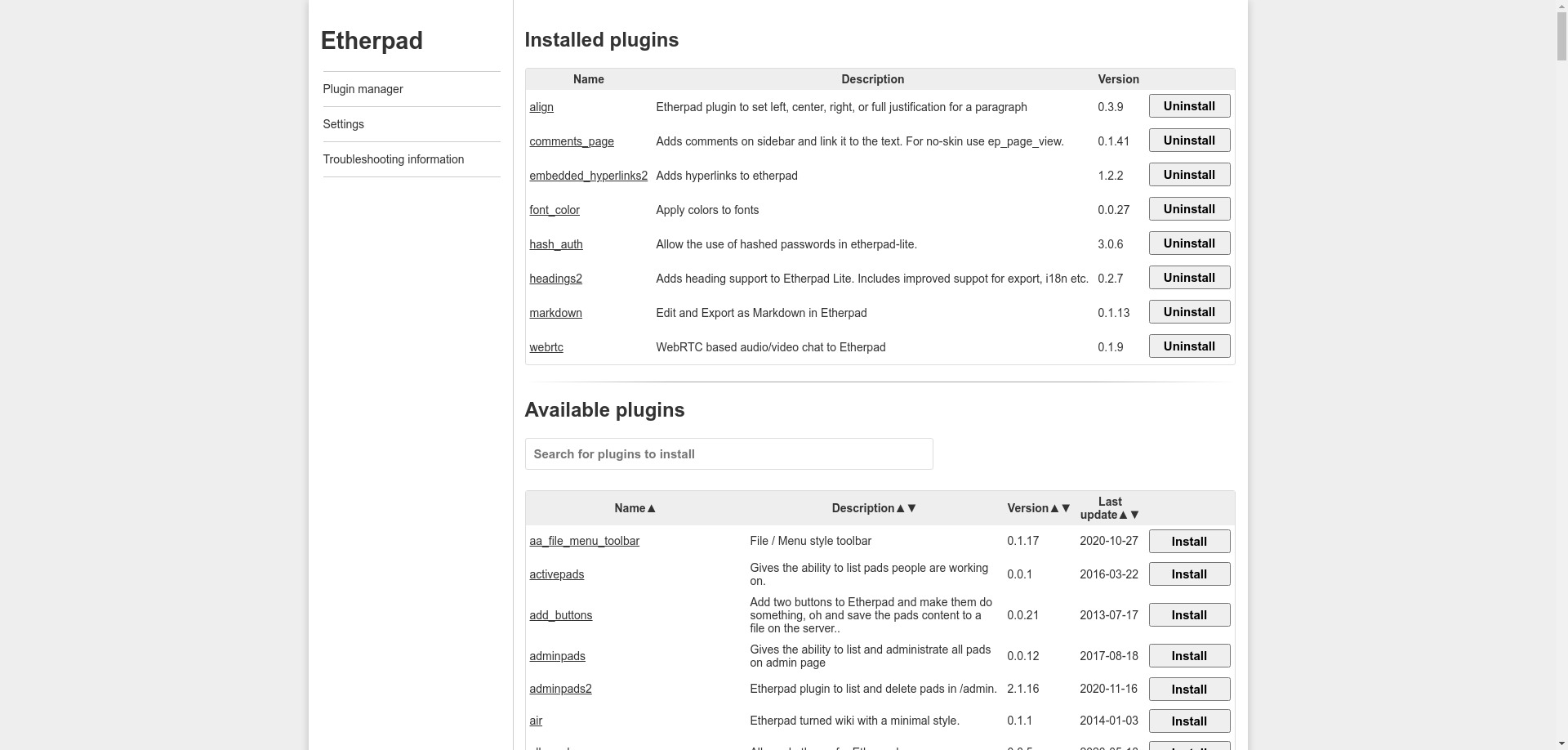

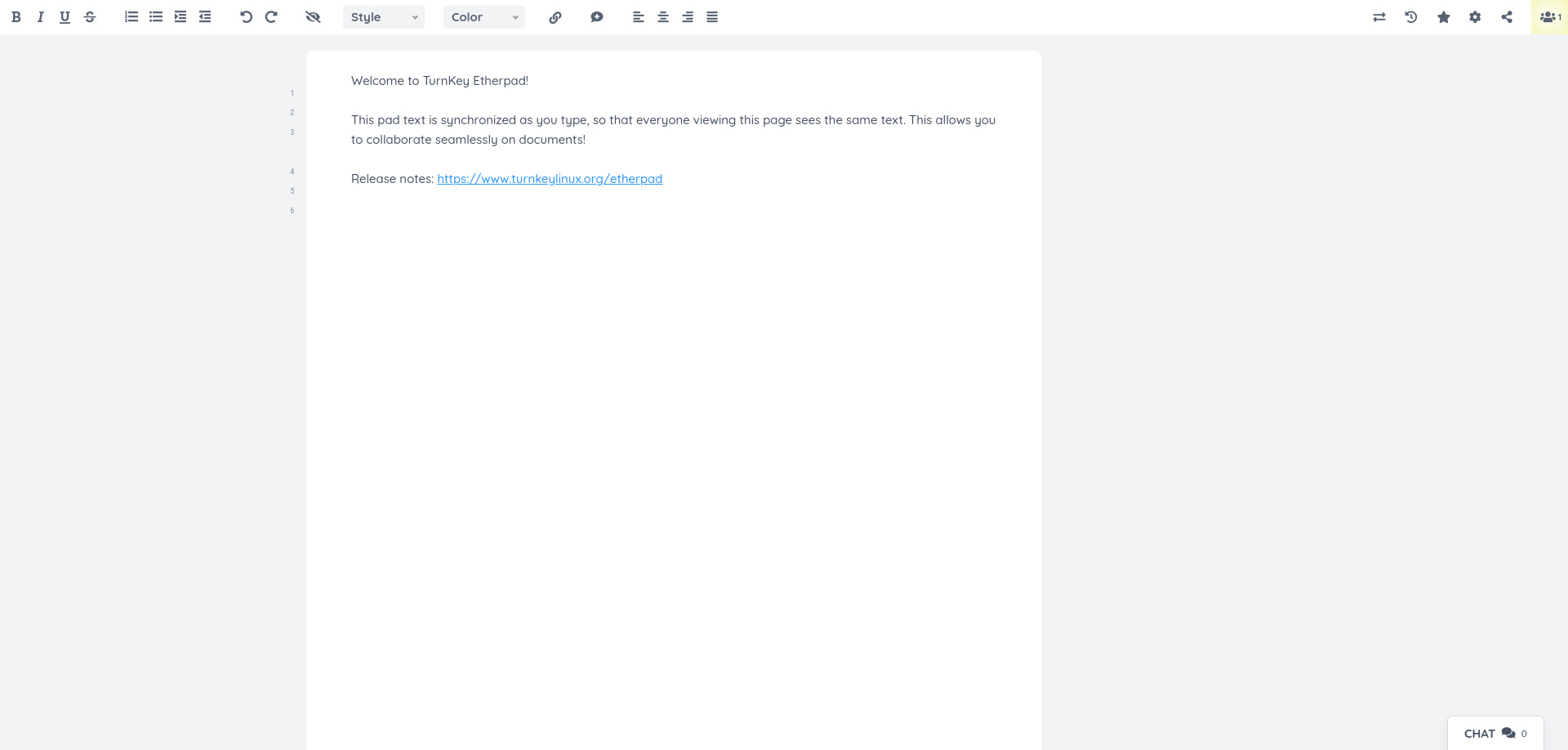
Etherpad Lite is a real-time collaborative editor, sort of like a web-based multiplayer Notepad that allows groups of users to simultaneously edit a text document, with the ability to display each author's text in their own color. There is also a chat box in the sidebar to allow meta communication.
This server includes all the standard features in TurnKey Core, and on top of that:
Etherpad configurations:
The maintained upstream stable package is installed from Etherpad's signed APT repository in /opt/etherpad.
Pre-configured to use MySQL/MariaDB (recommended for production).
Node.js configurations:
Includes the supported Node.js 24 LTS runtime from NodeSource's signed repository.
The nginx web server is pre-configured to proxy to the Etherpad service, with SSL support out of the box.
Etherpad runs under its upstream systemd service and dedicated account.
SSL support out of the box
Includes postfix MTA (bound to localhost) for sending of email. Also includes webmin postfix module for convenience.
Note: This server does not include Abiword or Libre Office. One of these tools is required to export pads, but they add significant size to the image. They are easy to install, please see below.
Install Abiword and enable it in Etherpad:
apt update
apt install abiword
sed -i "s|\"abiword\" :.*|\"abiword\" : \"/usr/bin/abiword\",|" \
   /etc/etherpad/settings.json
systemctl restart etherpad
Or;
Install Libre Office and enable it in Etherpad:
apt update
apt install libreoffice
sed -i "s|\"soffice\" :.*|\"soffice\" : \"/usr/bin/soffice\",|" \
   /etc/etherpad/settings.json
systemctl restart etherpad
Credentials (passwords set at first boot)
Webmin, SSH, MySQL: username root
Etherpad administration: username admin
Run from browser
V 19.0
V 18.0
GitHub
Usage details & Logging in for Administration
No default passwords: For security reasons there are no default passwords. All passwords are set at system initialization time.
Ignore SSL browser warning: browsers don't like self-signed SSL certificates, but this is the only kind that can be generated automatically. If you have a domain configured, then via Confconsole Advanced menu, you can generate free Let's Encypt SSL/TLS certificates.
Web - point your browser at either:
- http://12.34.56.789/ - not encrypted so no browser warning
- https://12.34.56.789/ - encrypted with self-signed SSL certificate
Note: some servers redirect HTTP to HTTPS automatically.
Username for database administration:
- MySQL command line tool; log in as root (no password required):
$ mysql --user root
Welcome to the MySQL monitor.  Commands end with ; or \g.
Type 'help;' or '\h' for help. Type '\c' to clear the current input statement.

mysql>
Username for OS system administration:
Login as root except on AWS marketplace which uses username admin.
- Point your browser to:
- https://12.34.56.789:12321/ - System control panel
- https://12.34.56.789:12320/ - Web based command line terminal
- Login with SSH client:
ssh root@12.34.56.789
Special case for AWS marketplace:
ssh admin@12.34.56.789
* Replace 12.34.56.789 with a valid IP or hostname.