From the project
Configuring the timezone on TurnKey Linux
For some TurnKey appliances, it's important to set the date and time of the server before starting to use the application.
Examples:
- We're installing a blog or forum application, and we want to know the exact date and hour a blog post was made.
- We're installing an issue tracker, and we need to to know the exact date and time when an issue was created or closed.
- We're installing a database, and it's important for us to be able to audit the database. The date and time should be correctly configured and reflected on the database logs.
When you deploy a TurnKey appliance, it comes with UTC timezone configured by default, from which the rest of timezones are calculated. To configure our own timezone, you use one of two methods.
1) Setting timezone using Web interface (webmin)
By default, Turnkeylinux doesn't come with webmin's system time module. Here is how you can install it and use it to change your timezone:
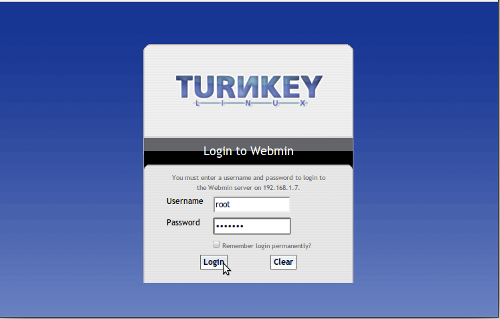
1. Access webmin using your prefered browser at https://your-appliance-ip:12321 and login as root with the password you stablished at installation time.
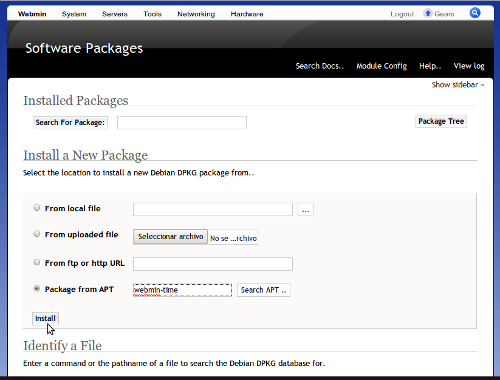
2. Navigate from the main menu to System->Software Packages, and in the section Install a New Package, we select Package from APT and write "webmin-time" as the name of the package. Click on the install button.
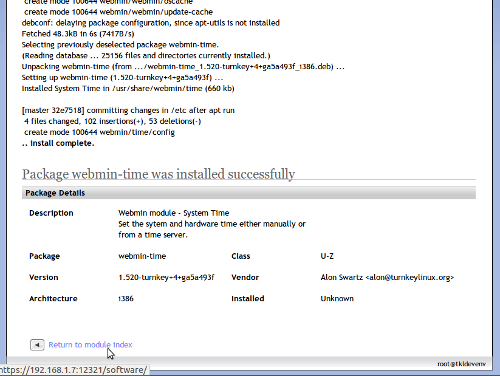
3. Once the module is installed correctly, we follow the "Return to module index" link. Now, we'll have available the System Time option in the System menu.
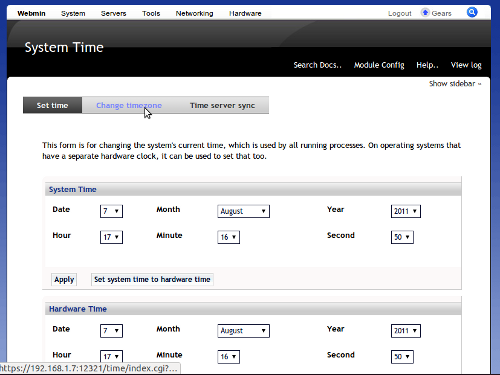
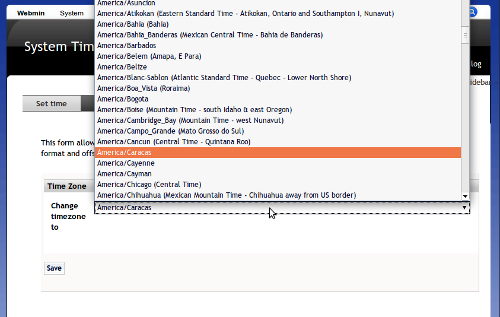
4. Access the System Time option, and select Change Timezone. There you'll be able to select your timezone and apply it, and the server will change the time and date to correspond with your setting.
2) Changing timezone via Command Line Interface
If you are confortable working at the CLI level, follow this procedure:
1. SSH to your server as root, using the password you stablished at installation time.
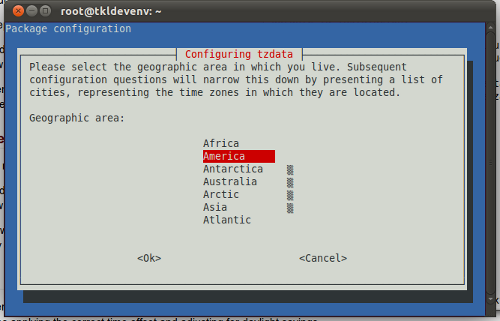
2. Run the command "dpkg-reconfigure tzdata". You'll be able to select your timezone and the system will configure time and date accordly.
That's all, now you will have your server ready for use, with the correct time and date reflected!
You can check this post in spanish here.
It would be great if it were part of the default distribution.