

Deprecated appliance
Magento 2
Flexible Shopping Store eCommerce Platform
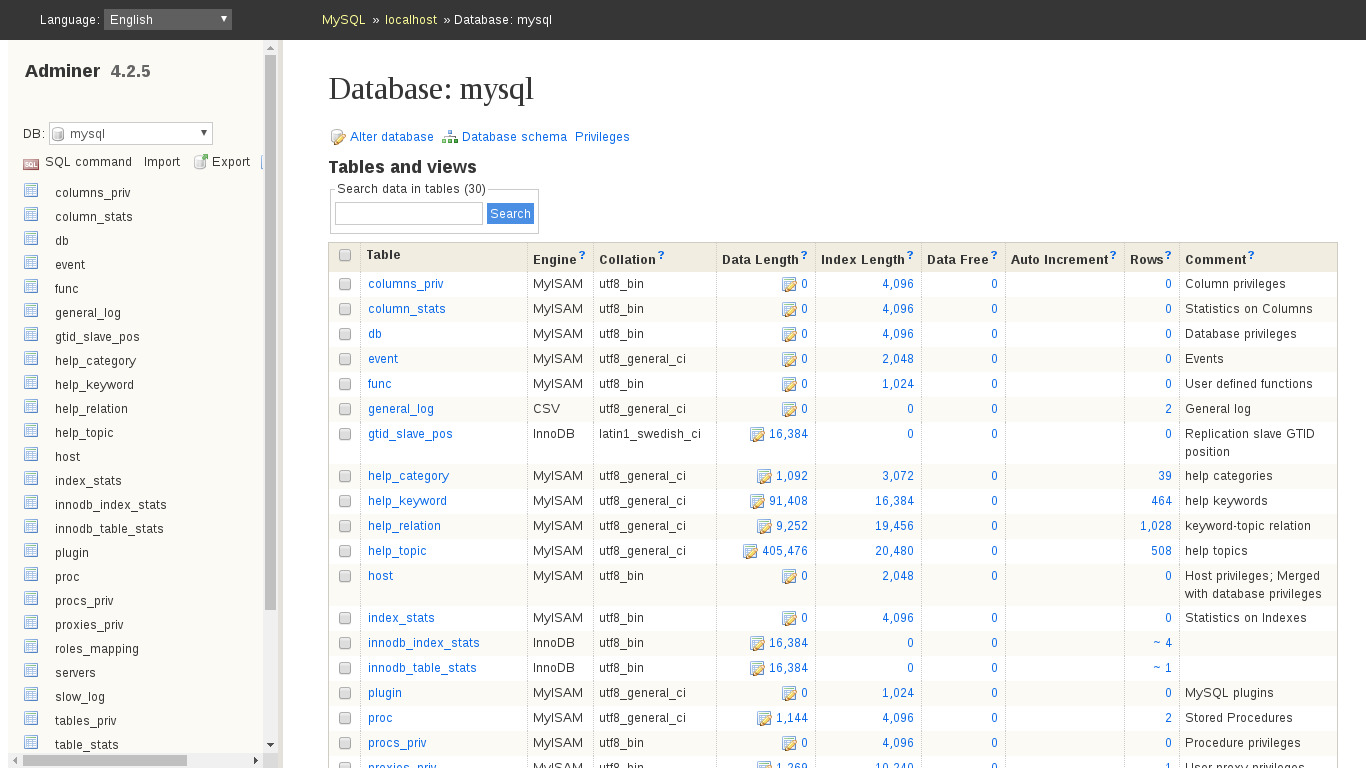
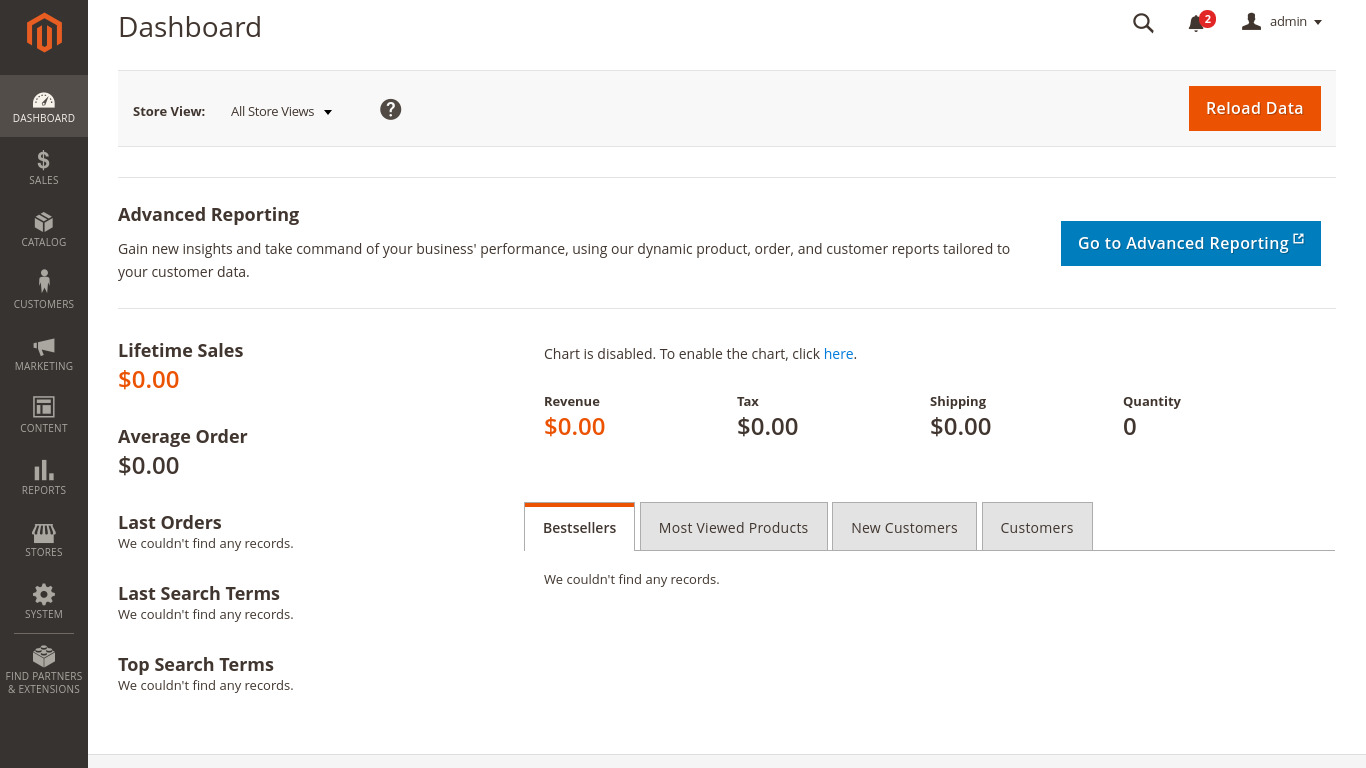
Magento 2 screenshots
Please note: TurnKey Magento is not currently available from the TurnKey software appliance library.
The TurnKey Linux Magento appliance has been discontinued (hopefully temporarily) due to some issues that we had with a previous release. Resolving the issue was soaking up too many TKL resources so development has been put on hold until further notice. Unfortunately, due to internal resource limitations and other priorities, there is no ETA of when it may be available again. Thank you for your understanding.
We warmly welcome any community contributions to assist us to get the Magento appliance available again.
In the meantime, please check out some our other Ecommerce and Content Management System appliances.
Until further notice, this page remains available for informational purposes only.
Magento is a feature-rich, professional open-source eCommerce solution that offers merchants complete flexibility and control over the look, content, and functionality of their online store. Features includes powerful marketing, merchandising and content management. Magento is designed for scalability and is backed by an extensive support network.
GitHub
This appliance includes all the standard features in TurnKey Core, and on top of that:
- Magento configurations:
- Installed from upstream source code (via git/composer) to /var/www/magento
Security note: Updates to Magento may require supervision so they ARE NOT configured to install automatically. See below for updating Magento.
- Includes Elasticsearch (installed from upstream apt repo).
- Hourly cron job for maintenance.
- Installed from upstream source code (via git/composer) to /var/www/magento
- SSL support out of the box.
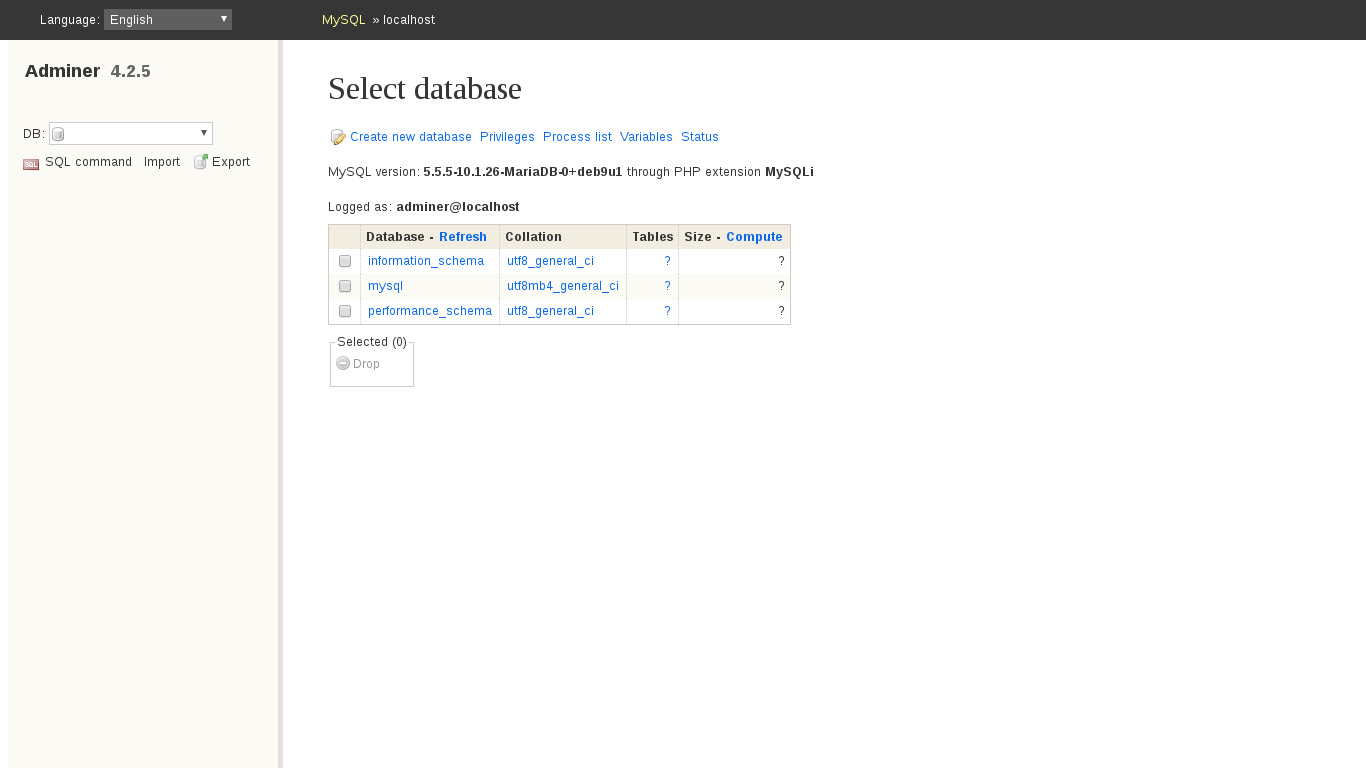
- Adminer administration frontend for MySQL (listening on port 12322 - uses SSL).
- Postfix MTA (bound to localhost) to allow sending of email from web applications (e.g., password recovery)
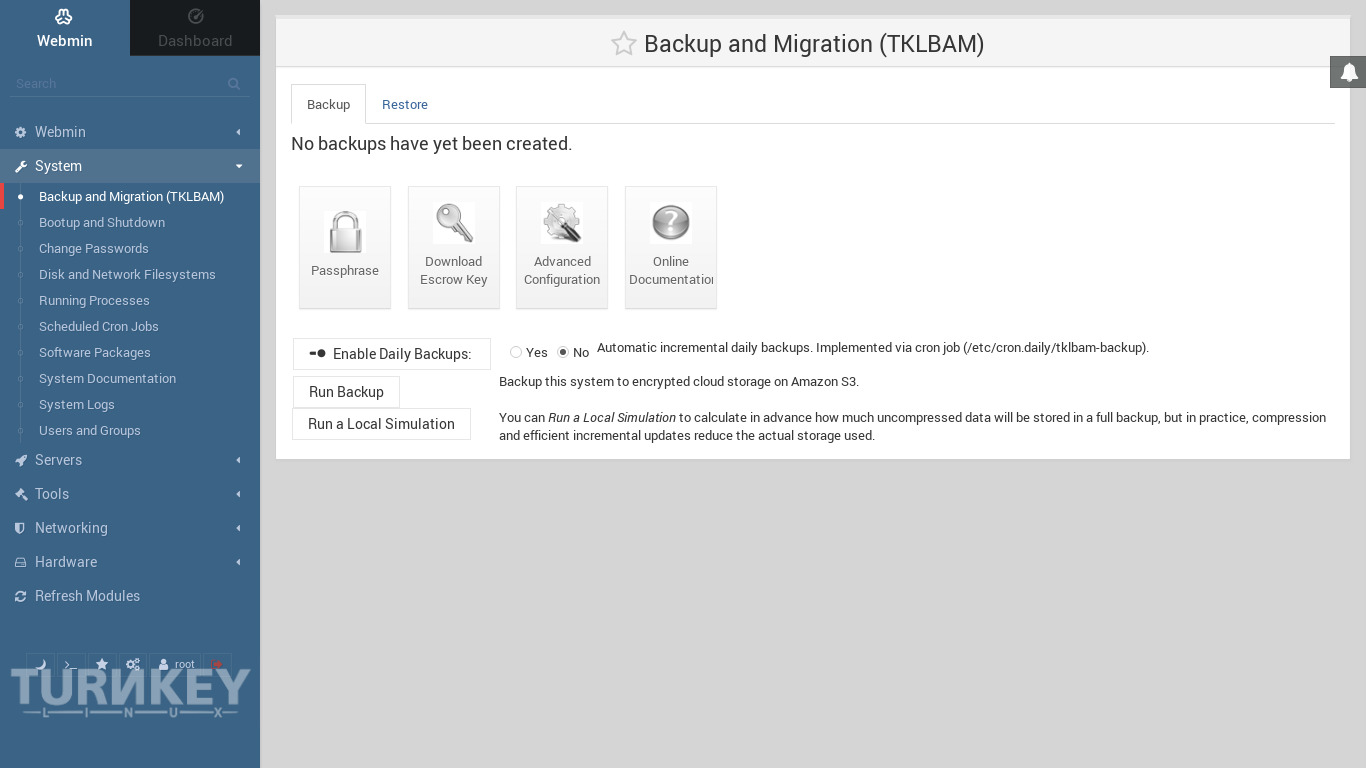
- Webmin modules for configuring Apache2, PHP, MySQL and Postfix.
Supervised Manual Magento Update
For instructions on upgrading Magento 1.X please refer to the Magento 1.X upgrade docs.
To migrate your site from 1.X to 2.X please refer to Magento 2 migration guide.
We recommend signing up to Magento Security Alerts for latest updates.

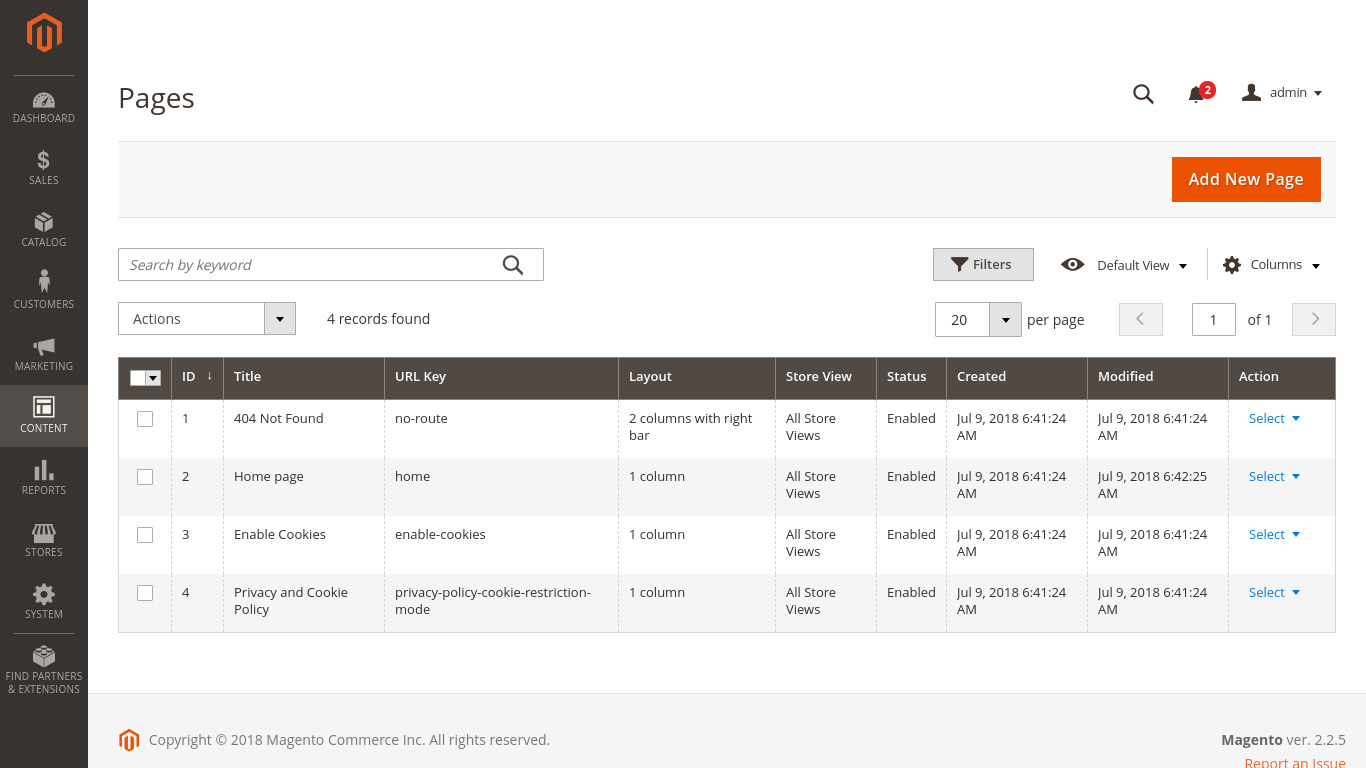
Usage details & Logging in for Administration
No default passwords: For security reasons there are no default passwords. All passwords are set at system initialization time.
Ignore SSL browser warning: browsers don't like self-signed SSL certificates, but this is the only kind that can be generated automatically. If you have a domain configured, then via Confconsole Advanced menu, you can generate free Let's Encypt SSL/TLS certificates.
Web - point your browser at either:
- http://12.34.56.789/ - not encrypted so no browser warning
- https://12.34.56.789/ - encrypted with self-signed SSL certificate
Note: some appliances auto direct http to https.
Username for adminer:
Login as username adminer
Username for database administration:
- Adminer; login as MySQL username adminer:
https://12.34.56.789:12322/ - Adminer database management web app
- MySQL command line tool; log in as root (no password required):
$ mysql --user root
Welcome to the MySQL monitor.  Commands end with ; or \g.
Type 'help;' or '\h' for help. Type '\c' to clear the current input statement.

mysql>
Username for OS system administration:
Login as root except on AWS marketplace which uses username admin.
- Point your browser to:
- https://12.34.56.789:12321/ - System control panel
- https://12.34.56.789:12320/ - Web based command line terminal
- Login with SSH client:
ssh root@12.34.56.789
Special case for AWS marketplace:
ssh admin@12.34.56.789
* Replace 12.34.56.789 with a valid IP or hostname.
Documentation
Magento Account Authentication Keys (firstboot initialisation)
During firstboot, TurnKey Magento asks for your Private and Public Account keys. These questions are optional and can be skipped. However, keys are required when updating, as well as installing third party modules and themes. If you don't add them during first boot, you'll need to add them later.
Getting your Magento Authentication Keys
As noted in the Magento docs, you can find your existing authentication keys, or generate new ones within your Magento account.
Magento keys require a Magento account. To log in, or register for an account if you don't already have one, browse to the Magento log in/registration page. Once logged into your account, you can view and manage your existing keys and create news ones from the key management page.
Adding your keys later
If you choose to skip the key configuration during firstboot, then you can add your keys within the running TurnKey Magento installation by logging into the admin area and navigating to "System -> Enable Composer updates" in the sidebar.
You can also save your keys by invoking 'composer update' from the commandline (in /var/www/magento) or by creating an auth.json file manually.
Use of composer
By default, the webserver user in TurnKey Magento is www-data, so to use composer, you will need to run as the www-data user. Under normal circumstance, log in as www-data fails, however, it is possible. I.e.:
su - www-data -s /bin/sh
Alternatively, if you only have a single command to run, then it can be included into a single line. E.g.:
su - www-data -s /bin/sh -c 'cd /var/www/magento && ls'
Note: If you are running from AWS Marketplace (using the 'admin' user rather than 'root') you will need to prefix the su command with sudo.