
Ready-to-use server
Mumble Server
the open source VoIP solution
- Debian based
- Automatic security updates
- Free and open source
Mumble Server screenshots
Mumble is open source, low-latency, high quality voice chat software primarily intended for use while gaming. The client and server are free software. The client is called Mumble and the server is called Mumble Server.
Mumble Server supports public and private voice servers, extensive user permission configuration using access control lists (ACLs), and programmatic administration through RPC. One daemon can run multiple virtual servers on different TCP and UDP ports.
This appliance includes all the standard features in TurnKey Core, and on top of that:
Mumble Server from the Debian package repository.
Encrypted Mumble client connections on TCP port 64738, with voice traffic on UDP port 64738. Amazon EC2 users must also allow these ports in their security group.
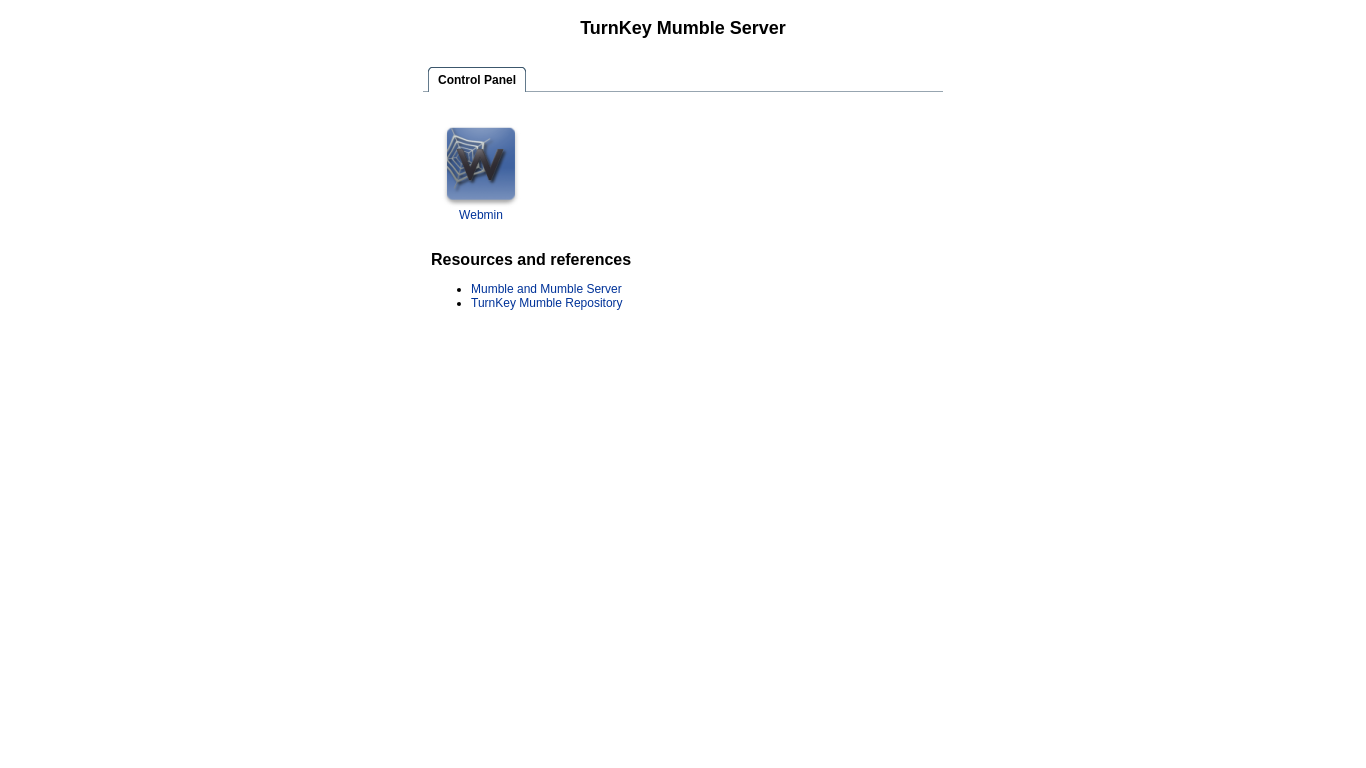
A TurnKey web control panel with a link to Webmin.
Note: A browser-based Mumble administration interface is not included. Administrators can use the official Mumble client or a local Ice-based tool described in the Mumble administration documentation. Use an SSH tunnel when an Ice tool runs on another system.
Credentials (passwords set at first boot)
Webmin, SSH: username root
Mumble Server: username SuperUser
Run from browser
V 19.0
V 18.0
GitHub
Usage details & Logging in for Administration
No default passwords: For security reasons there are no default passwords. All passwords are set at system initialization time.
Ignore SSL browser warning: browsers don't like self-signed SSL certificates, but this is the only kind that can be generated automatically. If you have a domain configured, then via Confconsole Advanced menu, you can generate free Let's Encypt SSL/TLS certificates.
Web - point your browser at either:
- http://12.34.56.789/ - not encrypted so no browser warning
- https://12.34.56.789/ - encrypted with self-signed SSL certificate
Note: some appliances auto direct http to https.
Username for mumble server:
Login as username superuser
Username for OS system administration:
Login as root except on AWS marketplace which uses username admin.
- Point your browser to:
- https://12.34.56.789:12321/ - System control panel
- https://12.34.56.789:12320/ - Web based command line terminal
- Login with SSH client:
ssh root@12.34.56.789
Special case for AWS marketplace:
ssh admin@12.34.56.789
* Replace 12.34.56.789 with a valid IP or hostname.